
Every utility organizes customer data a little differently, but Hydro One—Ontario’s largest electricity distributor—offers a helpful online portal where you can view and download your electricity usage. If you haven’t activated your Hydro One online account yet, it’s absolutely worth doing.
This guide walks you step‑by‑step through how to download your historical electricity data, with a special focus on hourly interval data. This type of data goes far beyond what you see on your monthly bill. It tells you exactly when you use electricity throughout the day, which is essential for properly designing solar or solar + battery energy storage (BESS) systems.
Why does hourly data matter? Because it helps you understand:
- When your highest energy use happens
- How your usage changes between weekdays and weekends
- How much electricity you consume during on‑peak, mid‑peak, and off‑peak periods
- Whether your usage pattern supports strategies like peak shaving, energy arbitrage, load displacement, or zero‑export solar
This level of detail allows us to design a system that truly matches your needs. For solar‑only projects, hourly data helps ensure the system is sized to offset your load without generating unnecessary excess power. For solar + storage systems, it allows accurate modelling of battery charging and discharging, peak demand reduction, and overall financial performance.
By starting with the right data, Upgreen’s engineering team can design a system that not only meets your expectations, but also delivers the strongest possible return on investment.
Below is your guide to downloading the data we need.
Step-by-Step Guide: How to Access Your Hydro One Usage Data
Step 1. Sign into Your Hydro One Account
Go to www.hydroone.com and log in. If you don’t have an online account yet, you can register here: https://www.hydroone.com/register
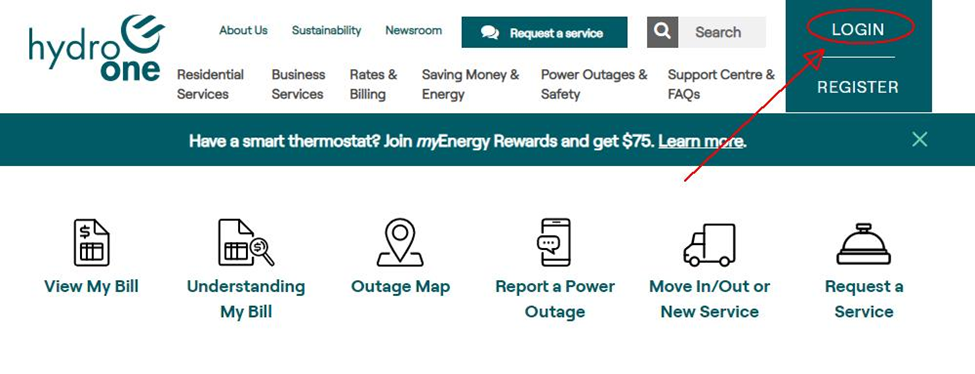
Step 2 — Navigate to “My Account”
Once logged in:
- On a computer: click “myAccount” in the top right corner
- On a mobile device: open the menu in the top left corner
What you see next may differ depending on whether you are on Time-of-Use (TOU) or Tiered billing.
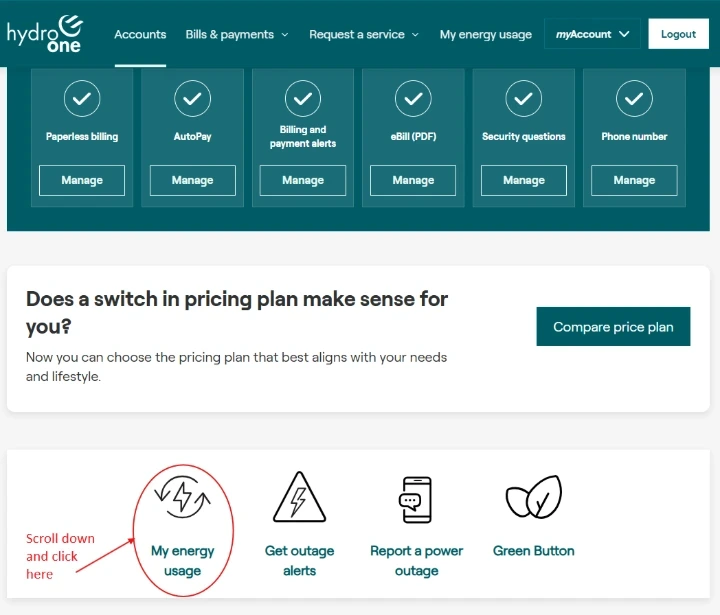
For TOU customers, scroll down and click “My Energy Usage.”
Step 3 — Open the “My Energy Usage” Section
Click the “My Energy Usage” link or icon.
This takes you to Hydro One’s usage portal, where you can view your electricity consumption by hour, day, or month.
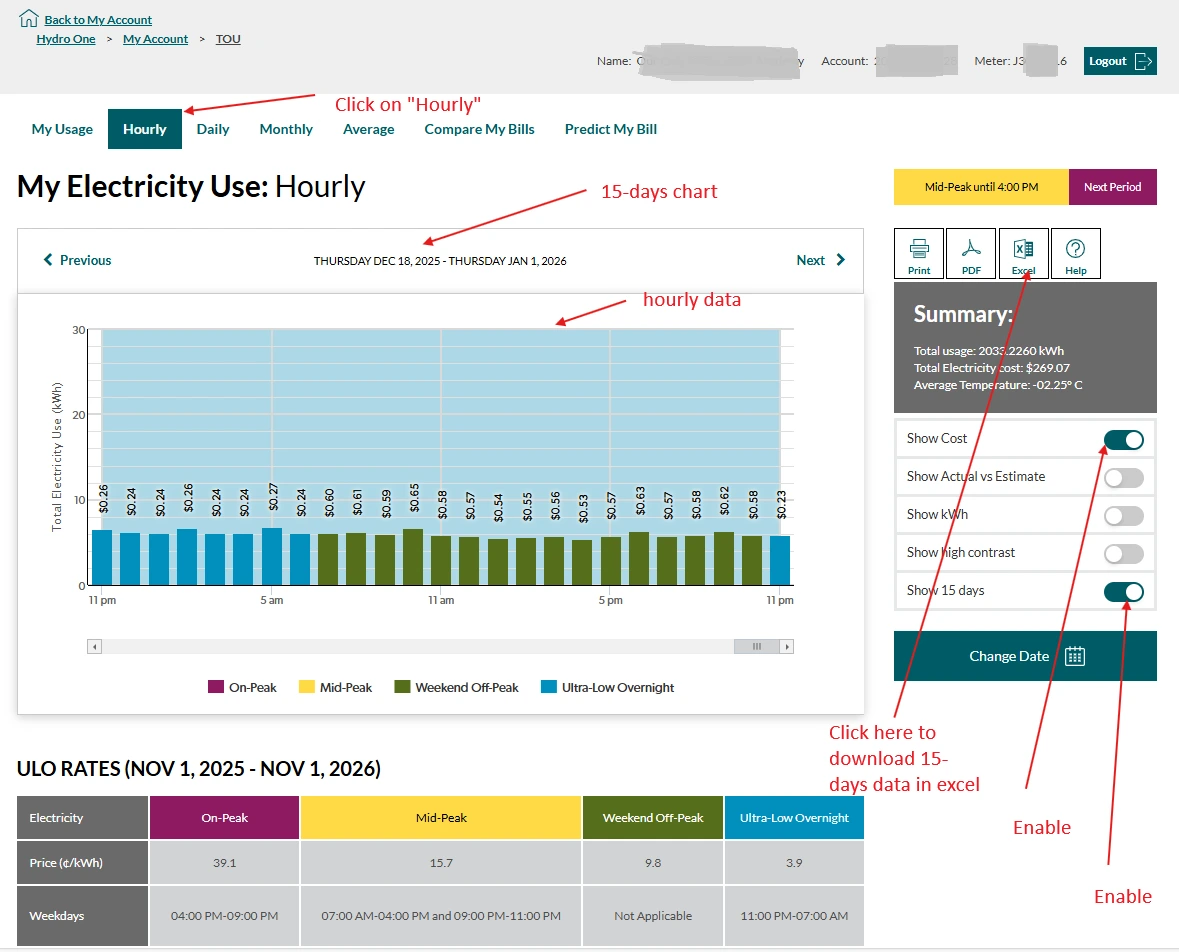
Step 4 — Download Your Hourly Data
To gather a year’s worth of hourly interval data, follow these steps:
- Click “Hourly” to view a full-day chart.
Turn on:
- “Show 15 days”
- “Show Cost” (optional but helpful)
- Click “Change Date.”
- Select the last day of the 15‑day window you want to download (for example: December 31).
Since the portal only allows downloading 15 days at a time, you’ll need to repeat this process roughly 24 times to collect a full year of data.
- Yes, it takes a bit of patience—but it’s absolutely worth it for accurate system design.
If You Don’t See the “My Energy Usage” Button
Some accounts may not have access to interval data directly through the portal. If that’s the case, contact Hydro One at customercommunications@hydroone.com, or reach out to our Upgreen team. We’re happy to guide you.
Final Step — Send Us Your Data
Once downloaded, you can:
- Combine the CSV/Excel files yourself, or
- Simply send them to the Upgreen team and we’ll take it from there.
With your interval data, we can accurately estimate how a net‑metered solar or solar + storage system will impact your monthly electricity costs, and provide you with the most cost-effective solution.